

- CI-triggered runs. Trigger Peeps automation runs from your CI.
- Failure analysis and auto-healing. Peeps automatically analyzes failures and heals failing test cases.
- Intent-based testing. Peeps supports intent-based testing on your repositories.
- Reporting and analytics. See reports and analytics for your test cases and test automation.
- CI workflow setup. Peeps sets up and runs your CI workflows, including configuring deploy triggers.
A GitHub account can be connected to only one Peeps organization.
Install the app
1
Open GitHub settings in Peeps
In Peeps, open Settings and select GitHub under Organization. Click Install GitHub App.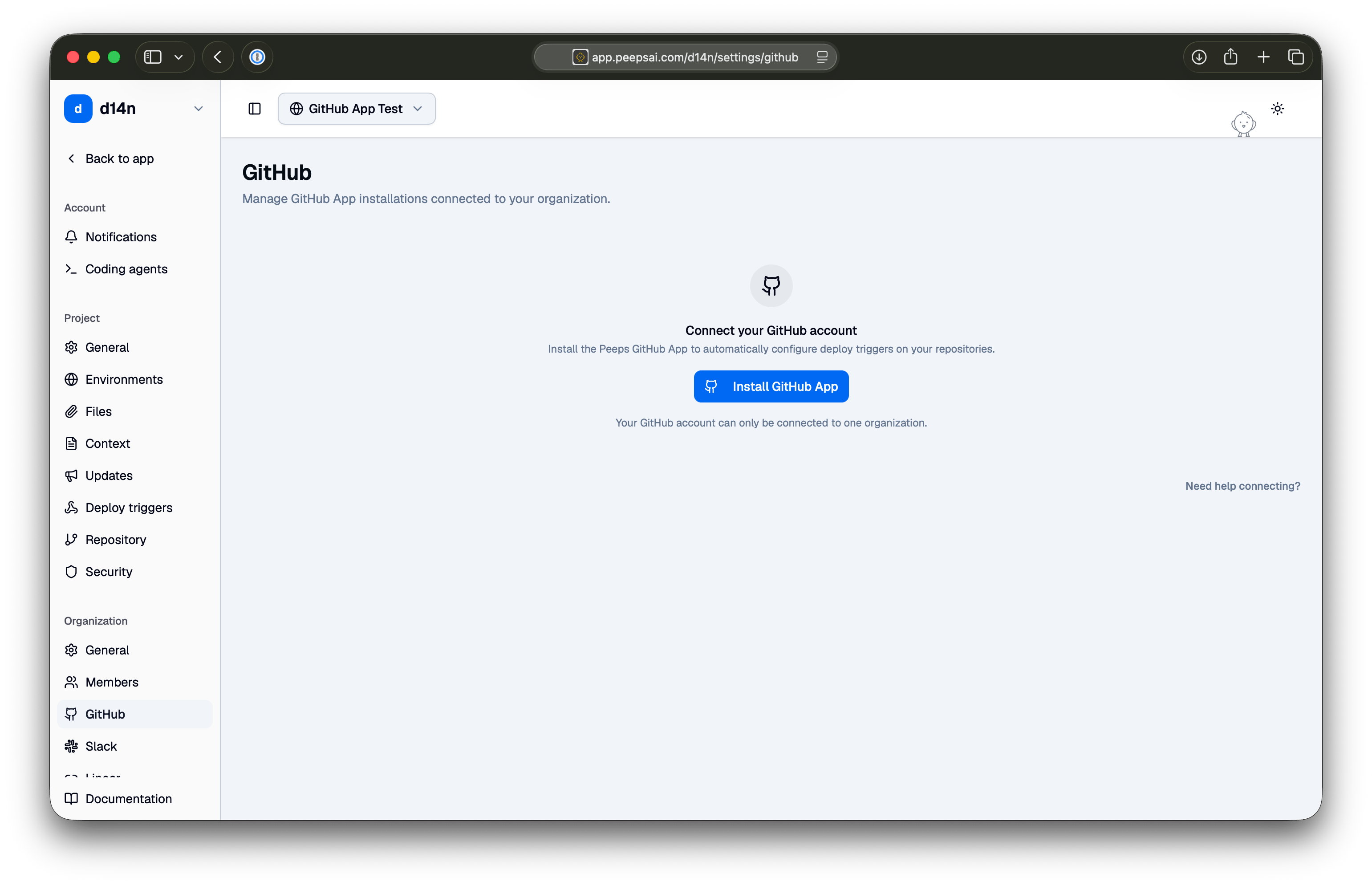
2
Sign in to GitHub
Peeps sends you to GitHub. If you are not already signed in, sign in to continue to Peeps Labs — the app’s name on GitHub.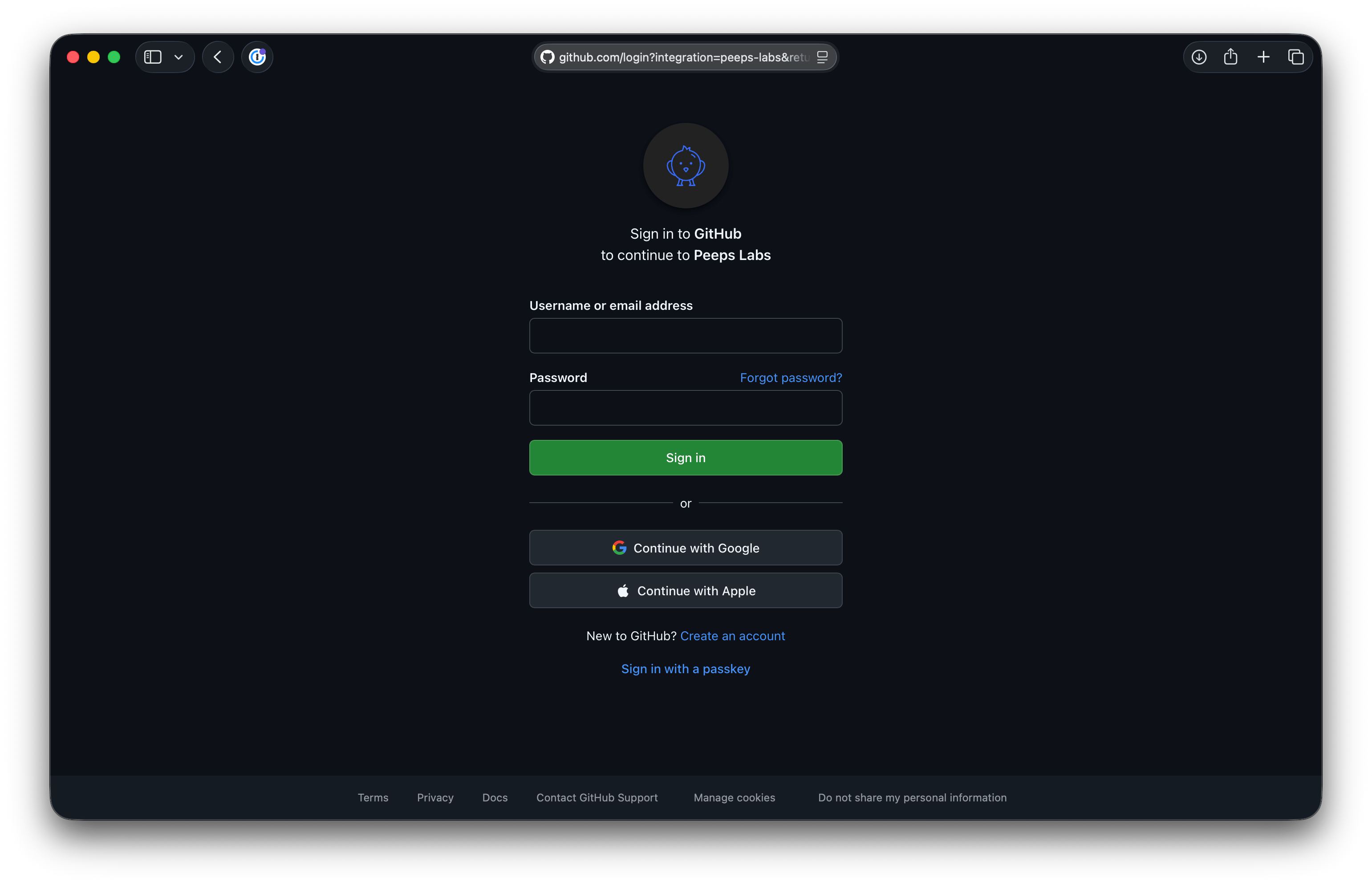
3
Choose which repositories Peeps can access
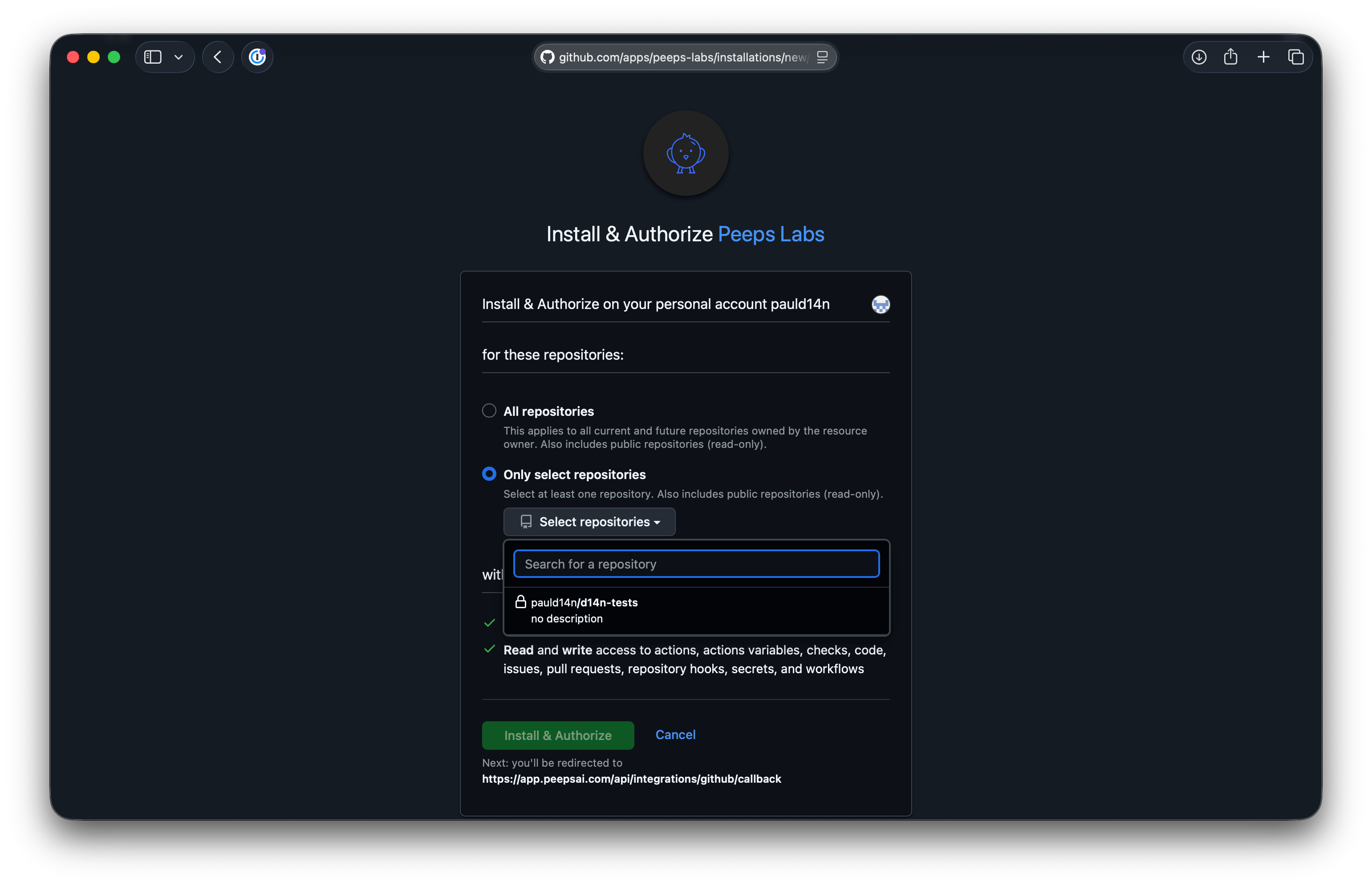
GitHub shows the Install & Authorize Peeps Labs page. Under for these repositories, choose one of two options.Either way, public repositories are also included with read-only access.
- All repositories
- Only select repositories
Select All repositories.This grants access to every current and future repository owned by the account. New repositories are covered automatically, with no need to revisit the installation.Choose this when Peeps should cover everything the account owns.
4
Review the permissions and install
Check the permissions listed under with these permissions: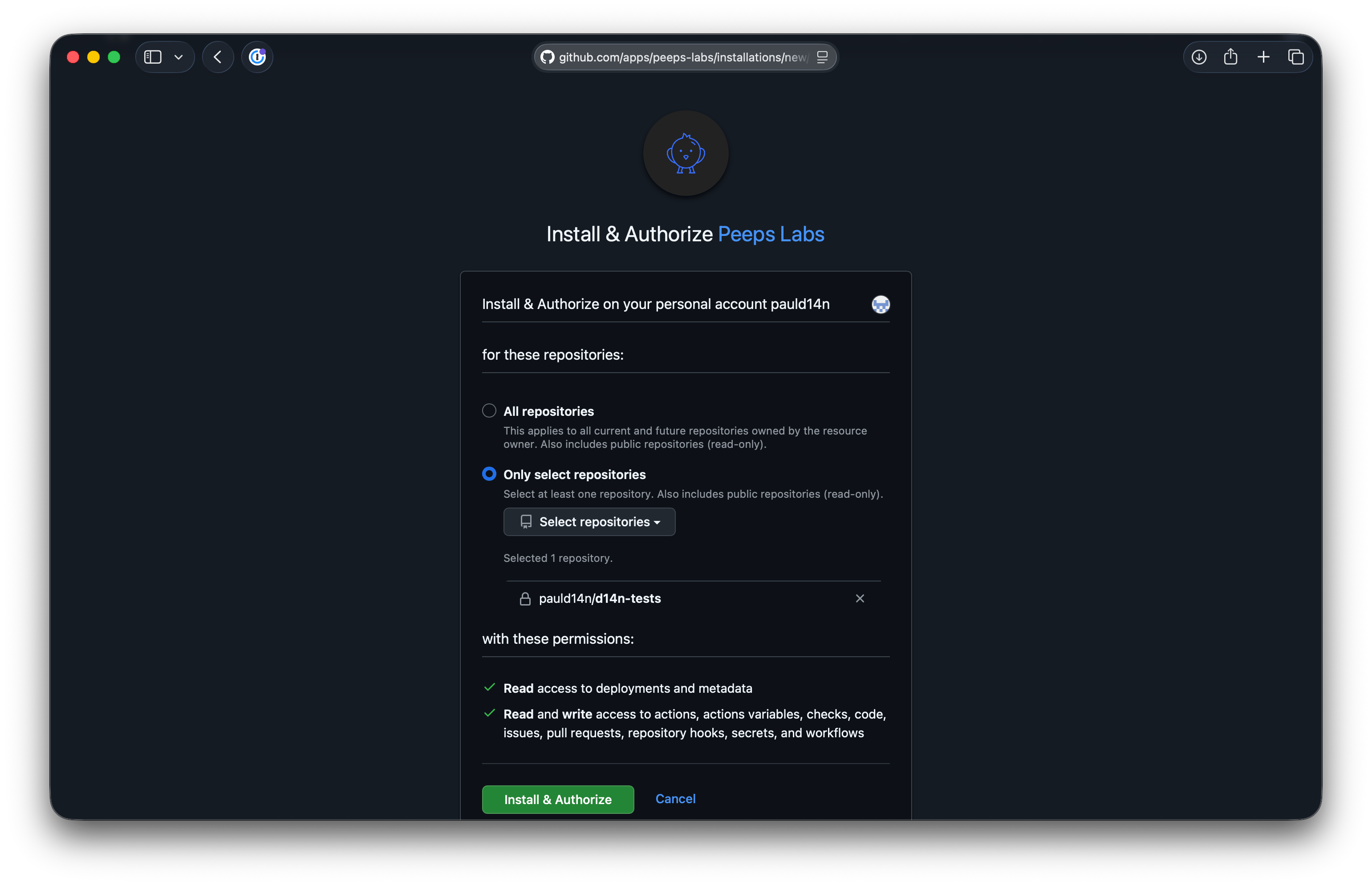
- Read access to deployments and metadata
- Read and write access to actions, actions variables, checks, code, issues, pull requests, repository hooks, secrets, and workflows
5
Confirm the connection in Peeps
GitHub returns you to Peeps, which shows GitHub App installed successfully. The GitHub account now appears on the GitHub settings page, with its account type and when it was connected.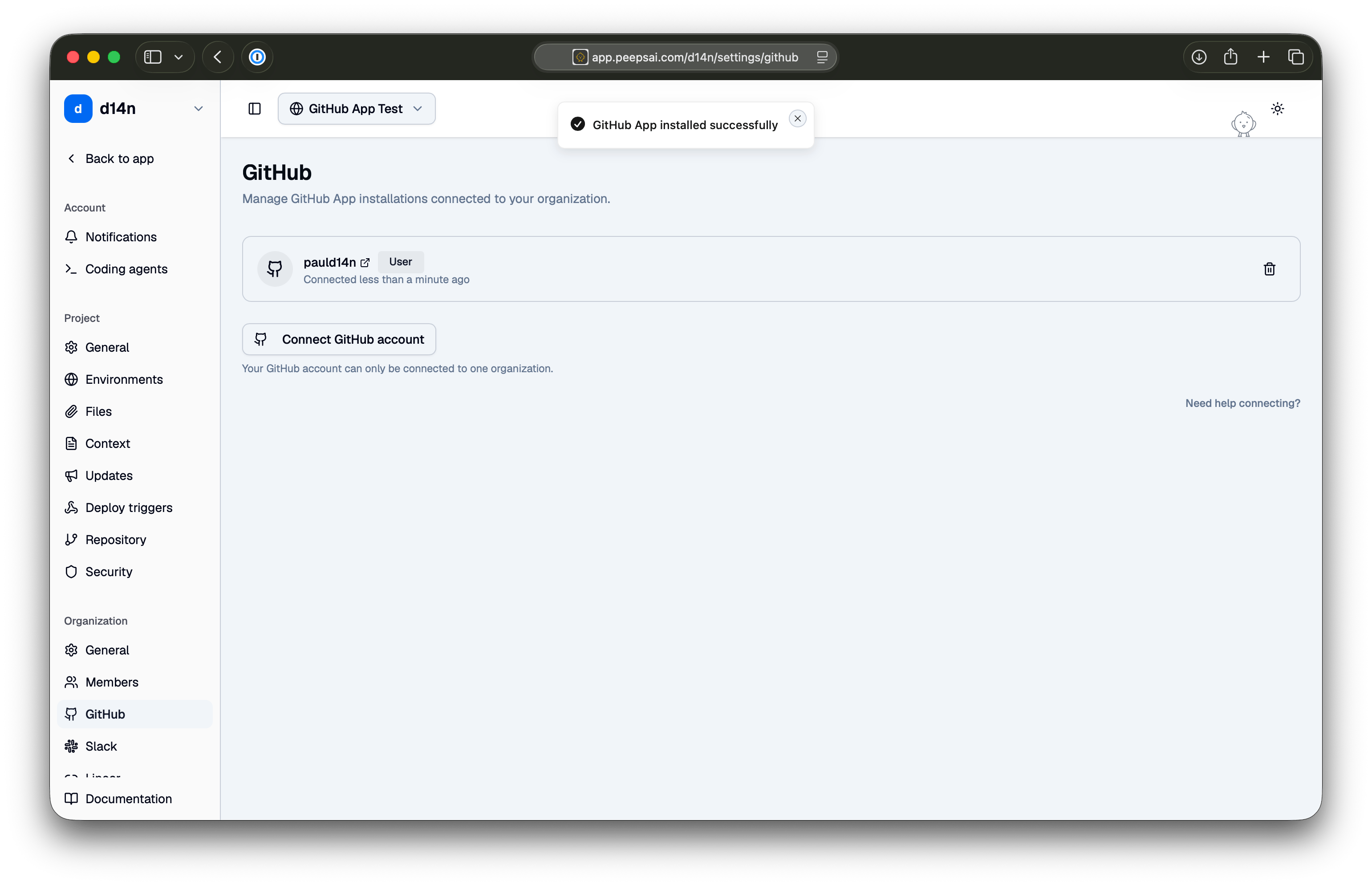
Installing on a GitHub organization
GitHub lets you install the app on your personal account or on any GitHub organization you belong to. To install on an organization, you need to be an owner of it. If you are not, GitHub sends the request to the organization’s owners for approval instead.Manage installations
The GitHub page in Peeps settings lists every connected GitHub account.- Connect another account. Click Connect GitHub account and repeat the steps above.
- Remove an account. Click the trash icon next to it.
Need help connecting? Get in touch.