

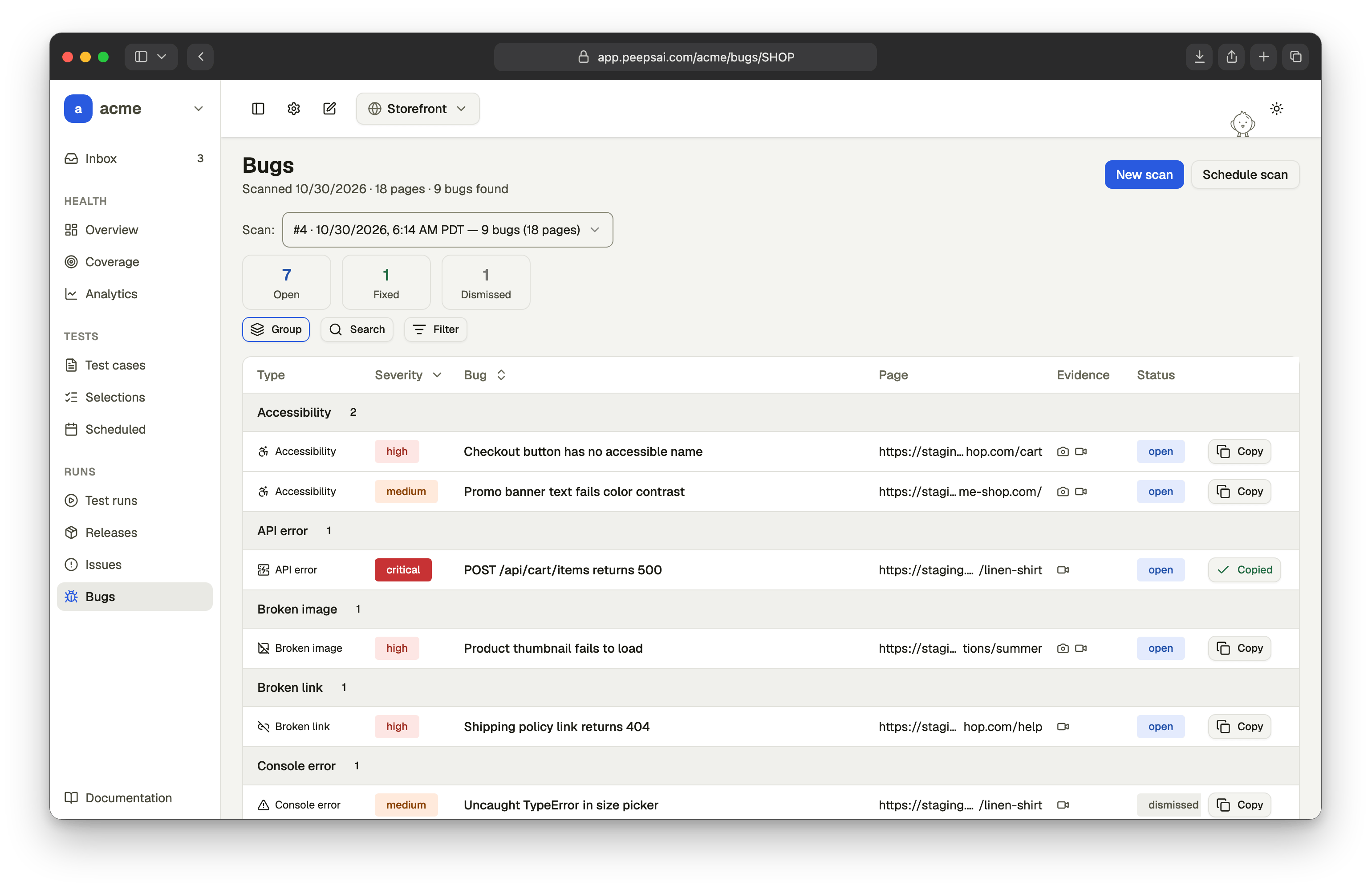
Read the page
The header shows when the scan you’re viewing ran, how many pages it visited, and how many bugs it found.- Scan picks which scan to view. Each completed scan is listed with its number, when it finished, its bug count, and its page count. The latest one is selected. While a new scan runs, the page keeps showing the previous results.
- Open, Fixed and Dismissed count the scan’s bugs by status.
- The table lists the bugs, grouped by type.
Group, search and filter
- Group groups the table by type, severity or status. Choose No grouping for a single list sorted by severity, most severe first.
- Search finds bugs by title or page URL.
- Filter narrows the table by type, severity or status.
Open a bug
Click a bug’s row to open its details.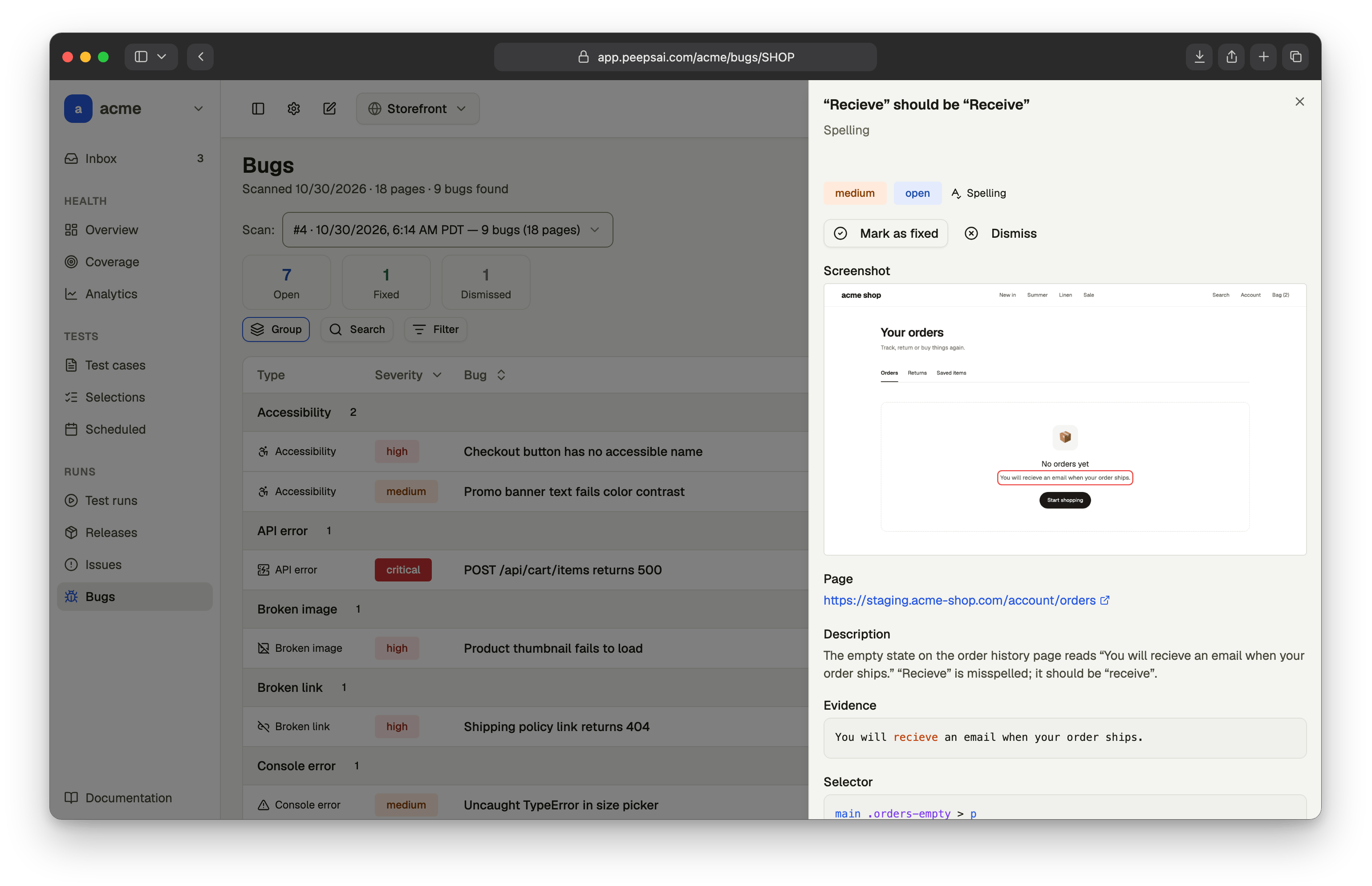
- Recording. The scan’s video, starting at the moment the agent found the bug. Bug detected at gives that time.
- Screenshot. The page with the problem in view. Visible bugs, such as spelling, accessibility and visual issues, usually have one. Console, API, slow-page and broken-link bugs don’t.
- Page. The URL where the bug is. Click it to open the page.
- Description. What’s wrong, in the agent’s words.
- Evidence. The exact text, error or response behind the bug.
- Selector. A CSS selector for the element involved.
- Console messages and Network errors. The raw browser console entries or failed requests, for console and API bugs.
Triage a bug
An open bug’s panel has two buttons. Both need the Contributor role or above.- Mark as fixed. You’ve fixed the bug.
- Dismiss. The bug isn’t worth fixing, or isn’t a bug.
Each scan reports bugs on its own. Peeps doesn’t match bugs between scans, so a bug you haven’t fixed shows up again, as open, in the next scan. Marking a bug fixed doesn’t hide it from future scans. To check a fix, run a new scan and look for the bug in it.