

Create a schedule
1
Set up the scan
On the Bugs page, click Schedule scan. Set up the scan as you would a one-off scan: pick the Environment and Application URL, and add an Exploration scope and Authentication if you need them. See Run a scan.Then click Schedule.
2
Name the schedule
Under Schedule name, give the schedule a name you’ll recognize in the schedule list. If you leave it empty, Peeps names it
Bug scan - <URL>.3
Choose when it runs
Under Recurrence schedule, choose how often the scan runs: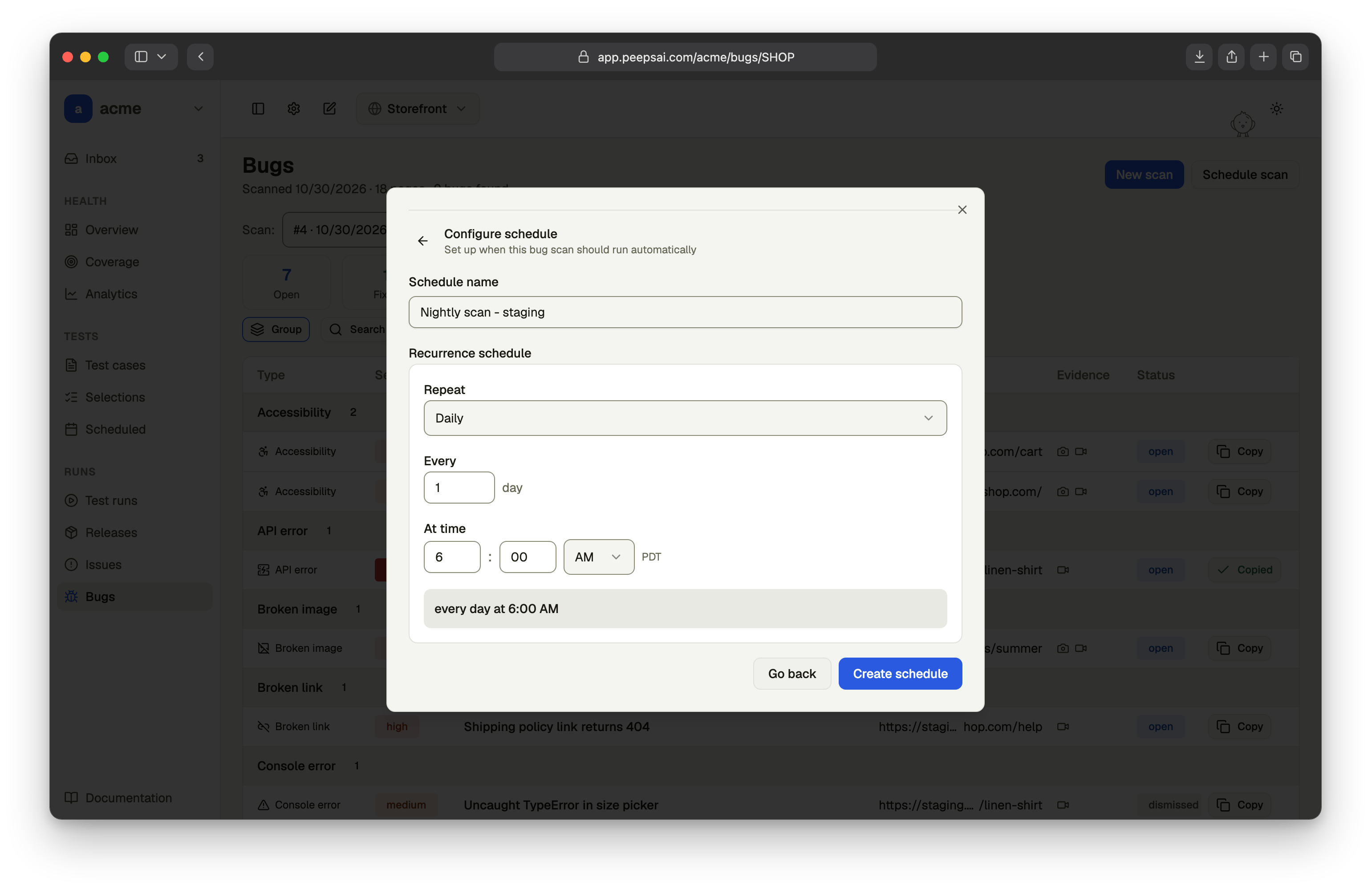
- Repeat sets the unit: Minutely, Hourly, Daily, Weekly or Monthly.
- Every sets the interval, such as every 2 days.
- At time sets the time of day, in your time zone. It appears for daily, weekly and monthly schedules.
- On days picks the weekdays, for weekly schedules.
- On day picks the day of the month, for monthly schedules.
4
Save it
Click Create schedule. The first scan runs at the next time the schedule matches.
How scheduled scans run
- Each scan runs as the person who created the schedule. That person also gets its notifications.
- One scan per project at a time. If another scan is still running when a scheduled scan is due, the scheduled scan waits and starts once the other one finishes.
- Results land on the Bugs page, like any other scan, and appear in the Scan list there.
Manage schedules
Bug scan schedules are listed on the Scheduled page. Click Scheduled in the sidebar under Tests, then open the Bug scans tab. Each schedule shows its Name, Target URL, Status (Active or Paused), Schedule, Next run, Last run, and Environment. Open the ⋯ menu on a schedule’s row to:- Run now. Start a scan right away. This works even when the schedule is paused.
- Edit. Change the name, URL, environment, scope, sign-in or timetable.
- Pause or Activate. A paused schedule doesn’t run. When you activate it again, its next run is worked out from now, so it doesn’t fire straight away for runs it missed.
- Delete. Remove the schedule permanently. Scans it already ran stay on the Bugs page.
Notifications
Peeps notifies you when a scan you started completes or fails. For a scheduled scan, the schedule’s creator is notified.
Both link to the scan in Peeps. A failure notification doesn’t include the reason, so open the scan to see what happened.
Email and in-product notifications are on by default. To change them, open Settings, select Notifications, and find Bug scans under the Email and In-product tabs.