The controls beside a release report’s tabs change how you read it. None of them changes a result.

Group

Group chooses how the report breaks down.
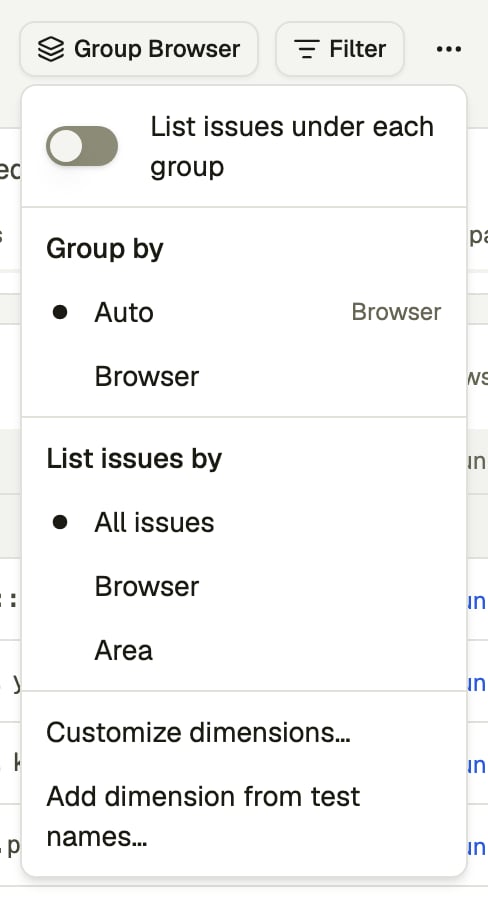
The Group menu: a List issues under each group switch, Group by with Auto selected and Browser, List issues by with All issues, Browser and Area, then Customize dimensions and Add dimension from test names.
Customize dimensions opens the list of what you can group by. Contributors and above can rename or hide them, rename the configuration, and add one from test names.

Filter

Filter narrows the report to some results by configuration, area, outcome, who ran them, or any dimension of yours. You can also filter by selecting a column heading in Where it fails or a card. A filter changes the tabs and the To review and configurations facts. The results at the top of the page, Comparison, Coverage and Run health always read the whole release. If a release can’t show a filter or grouping you’ve saved, a note under the controls says so.

Issue selectors

Selectors focus the report on some issues without touching the results. A chip under the tabs shows each selector that’s on. Select its × to clear it, or Clear all. Beside the chips, each tab says what it leaves out: A selector never changes a result. A cause can be an unconfirmed AI label, so selecting one chooses what to look at, not what’s true. Peeps doesn’t hide an issue when it can’t place it:
  • Plus N whose history is unknown counts issues kept because their history can’t be read.
  • Also lists N Done issues counts issues kept because the retests that would show whether they failed again can’t be read yet.
The tabs’ counts and the cards on All results keep counting every result the view holds, so they can read higher than the list under them. The cards on Issues follow the tracking and history selectors. Selectors are personal. They survive a reload and travel in a copied link, and Save for everyone never includes them.

Your view

Changes you make to Group and Filter and Hide reviewed are saved for you, on every release of the project. Nobody else sees them. Reset puts them back to the project’s team view, or to the default if it has none. It leaves your selectors on, since they have Clear all. In the ⋯ menu, Copy link to this view copies a link to what you see, selectors included. Someone who opens it sees your view without it replacing their own, and nothing is stored for them. Use my view takes them back to their own.

Save for everyone

Save for everyone makes your Group and Filter choices the project’s team view, so it’s what people see until they make their own changes. It appears once you’ve changed something, for Contributors and above. Your Hide reviewed and selectors stay yours. After saving, a message offers Undo. If someone else changed the team view after you opened the page, nothing is saved and the message says so.