

Issues
An issue is a group of failures that look like one problem. The number on its left is how many failing results it holds, and the strip on its right shows them by configuration.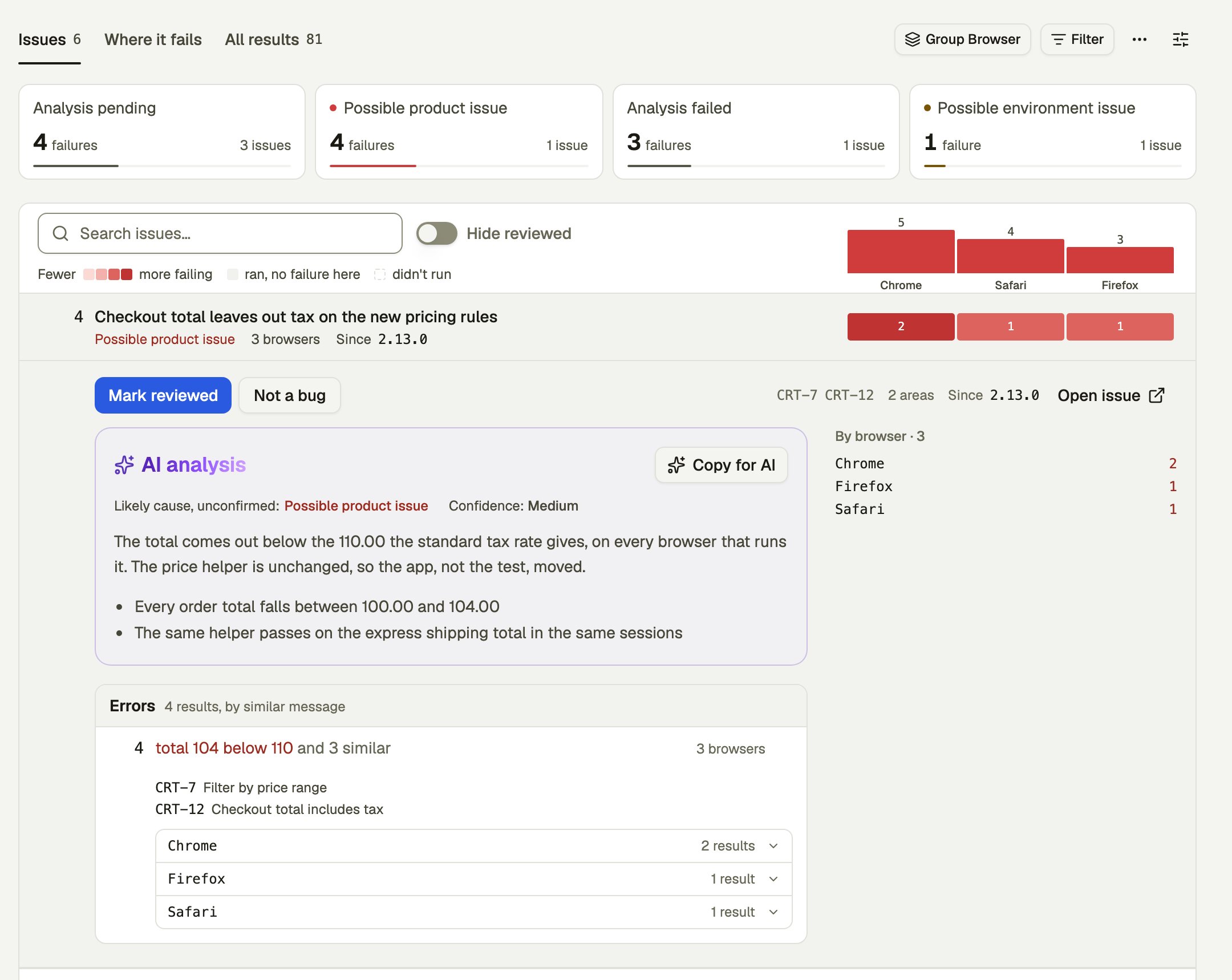
- Mark reviewed and Not a bug record your review. Select the active one again to clear it. Contributors and above can do this. A review changes no result.
- AI analysis gives a likely cause, always marked unconfirmed, with a confidence. Copy for AI copies the issue for your coding agent.
- Errors groups its results by similar message. Open one to reach the results and their runs.
- By configuration lists how many failing results each configuration has.
- Open issue opens the issue’s own page.
- Since names the earliest release Peeps has a record of it in.
- No earlier record means Peeps found none. It may only mean Peeps has no history for it.
Cards
The cards above the list count failures and issues by likely cause, or by the configuration, area or ticket when you list issues that way. Select a card to narrow the list, and select more to add to it. A cause can be an unconfirmed AI label, so narrowing by one changes no outcome.Tracked issues
When your organization has connected Linear or Jira, each issue shows where it stands in your tracker, such as Not tracked or Done, failed since. Contributors can create a ticket or link an existing one from the row, or from the issue’s own page. See Issue trackers. The ticket goes on the issue itself, with the row’s run linked beside it, so it shows on that issue in every release the issue fails in, and on no other issue. The ticket’s web link in your tracker opens the issue’s page. When the issue was merged into another, the ticket goes on the issue it was merged into. To take a ticket off an issue, use Unlink on the issue’s page across releases. It removes the ticket from that issue and its runs only; the same ticket on another issue stays.Search and hide
Search issues looks through the list. Hide reviewed hides what you’ve reviewed; it applies to you alone.Where it fails
This tab shows the failures as a grid, with areas down the side and configurations, or the dimension you group by, across the top.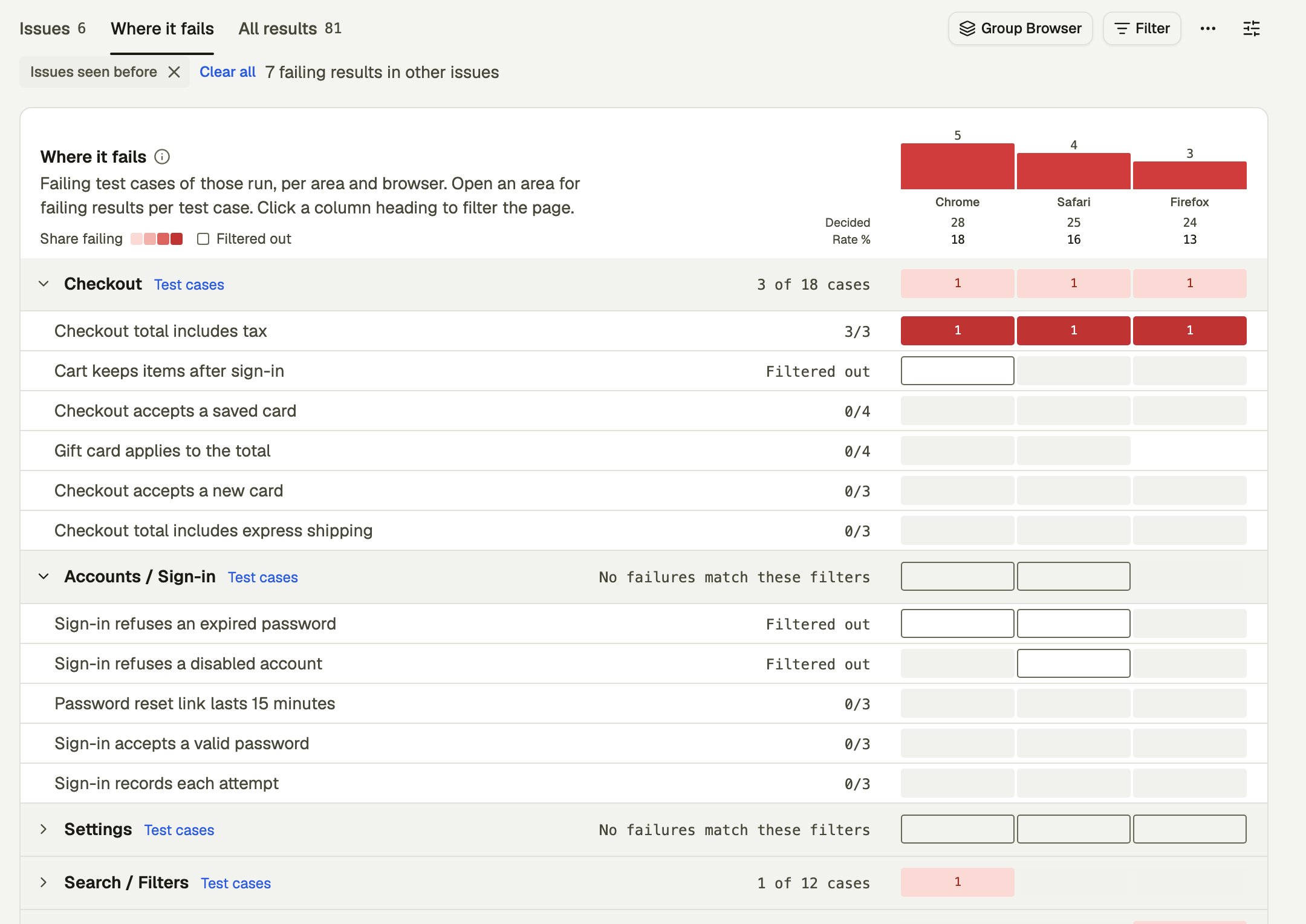
- The heading shows failing results, how many results were decided (passed, failed or errored), and the failure rate, per column. Select a column’s heading to filter the whole page to it.
- An area row counts the test cases with a failure, of those that ran. Open it to see its test cases, whose cells count failing results.
- A cell opens the failing results behind it.
With a selector on, areas, test cases and cells count only the issues you selected, and an area with nothing left says No failures match these filters. The columns’ totals keep counting every failure.
A cell counts test cases while the list it opens counts results, so one test case failing on two variants reads 1 and lists 2.
All results
All results lists each test case’s latest result per configuration, with its state, test key and run.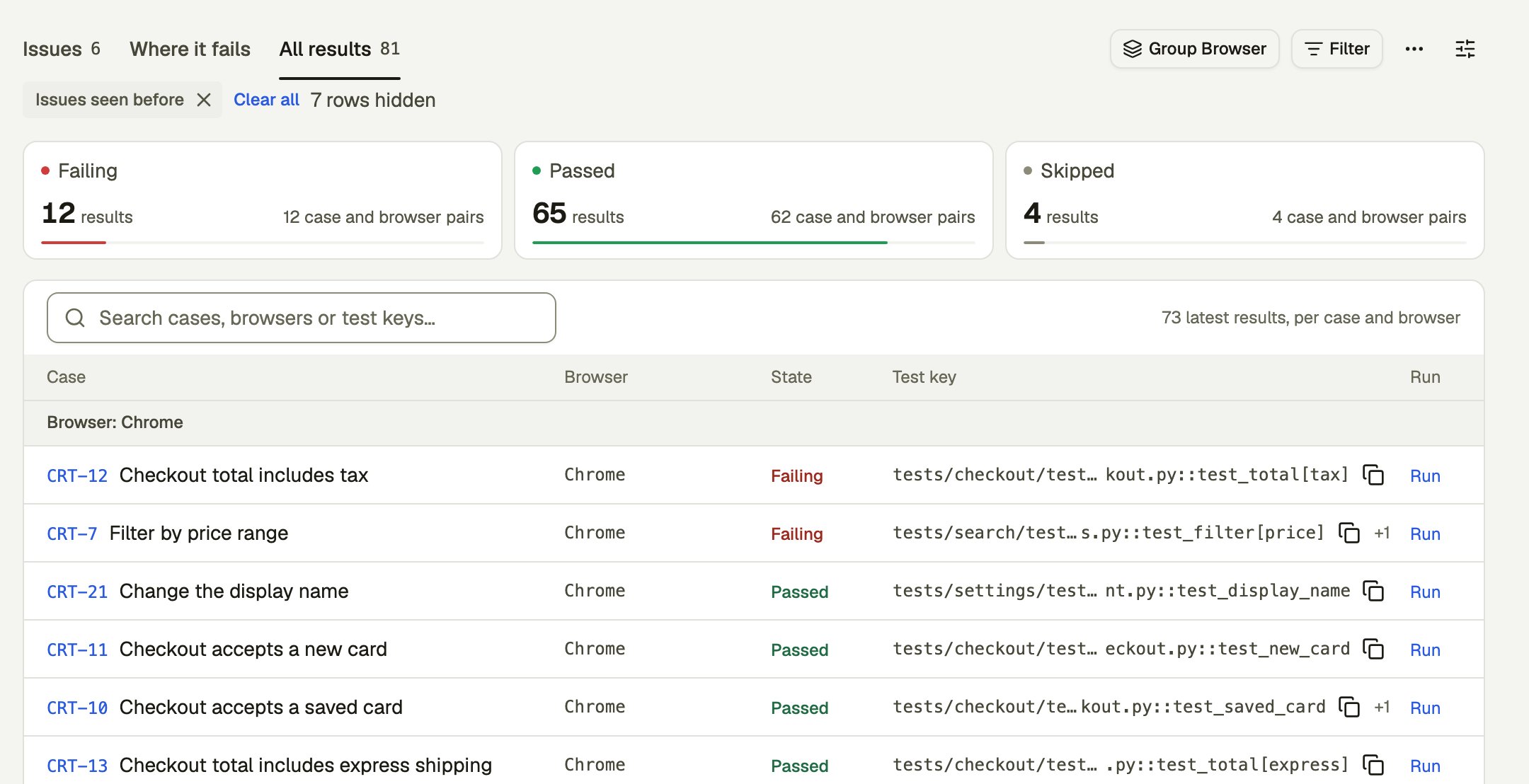
- The cards count results by state. Select one to filter the page to that state.
- Search looks through test cases, configurations and test keys.
- Select a row to open it.